PetSitterPro

Professional Pet Sitting Management

The all-in-one iOS app for independent pet sitters. Manage clients, track visits with GPS, create professional invoices, and grow your business.


PetSitterPro App Icon

See It In Action

Everything you need to run your pet sitting business professionally
Everything You Need

Run your pet sitting business like a pro

👥

Client Management

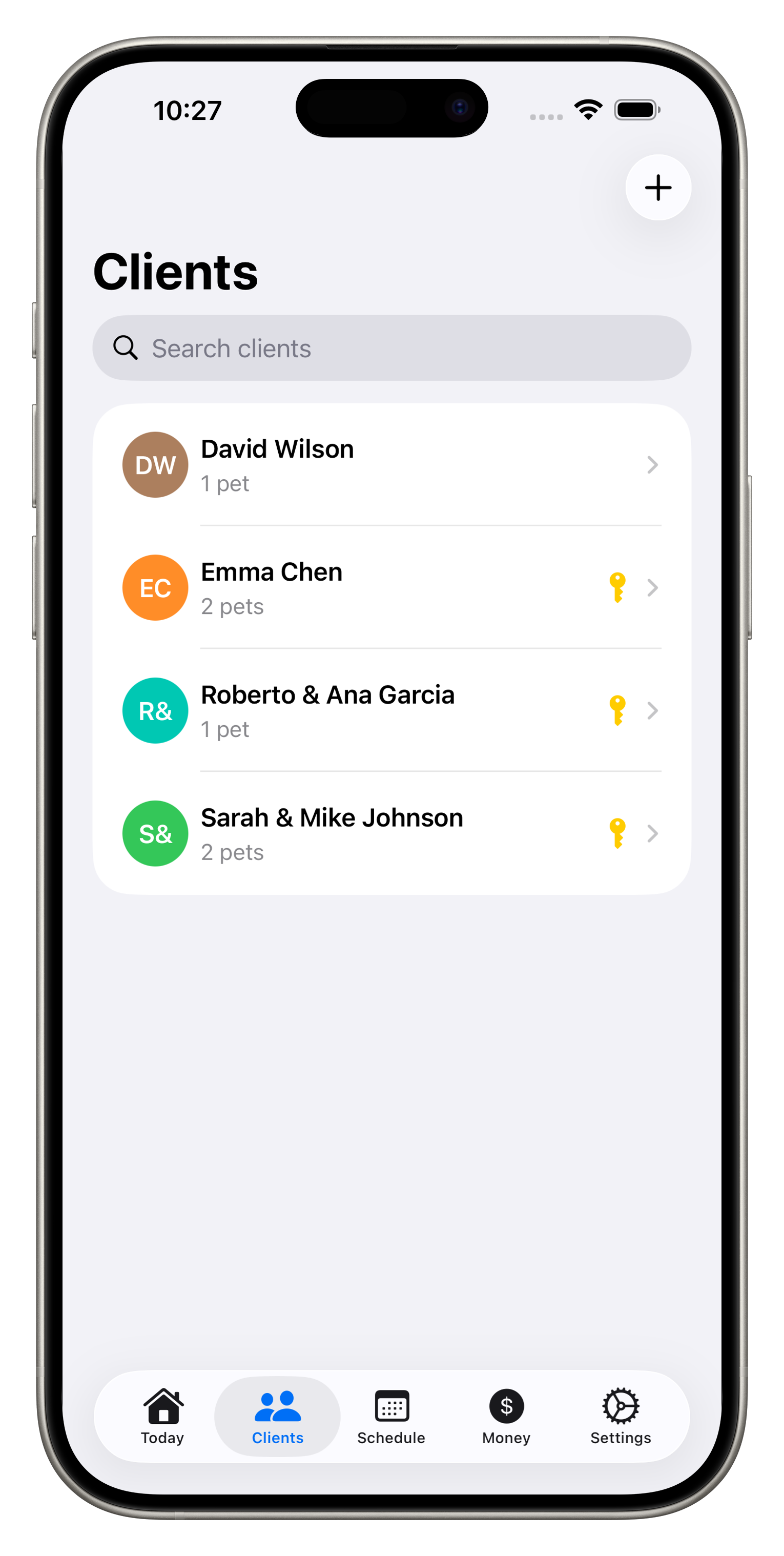
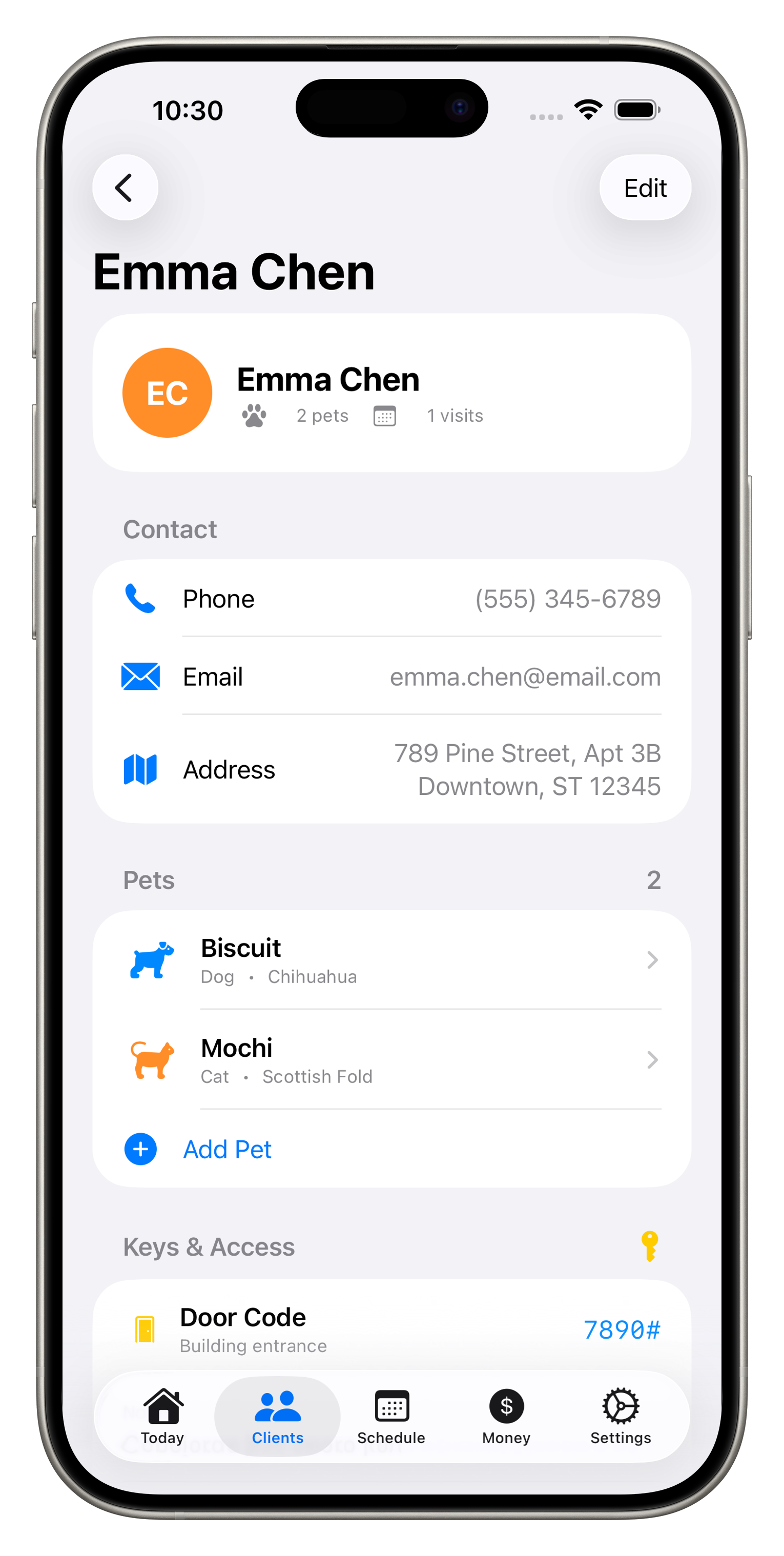
Store client details, emergency contacts, and access codes all in one secure place.

📍

GPS Walk Tracking

Track every walk with GPS. Show clients exactly where you went and how far.

📅

Smart Scheduling

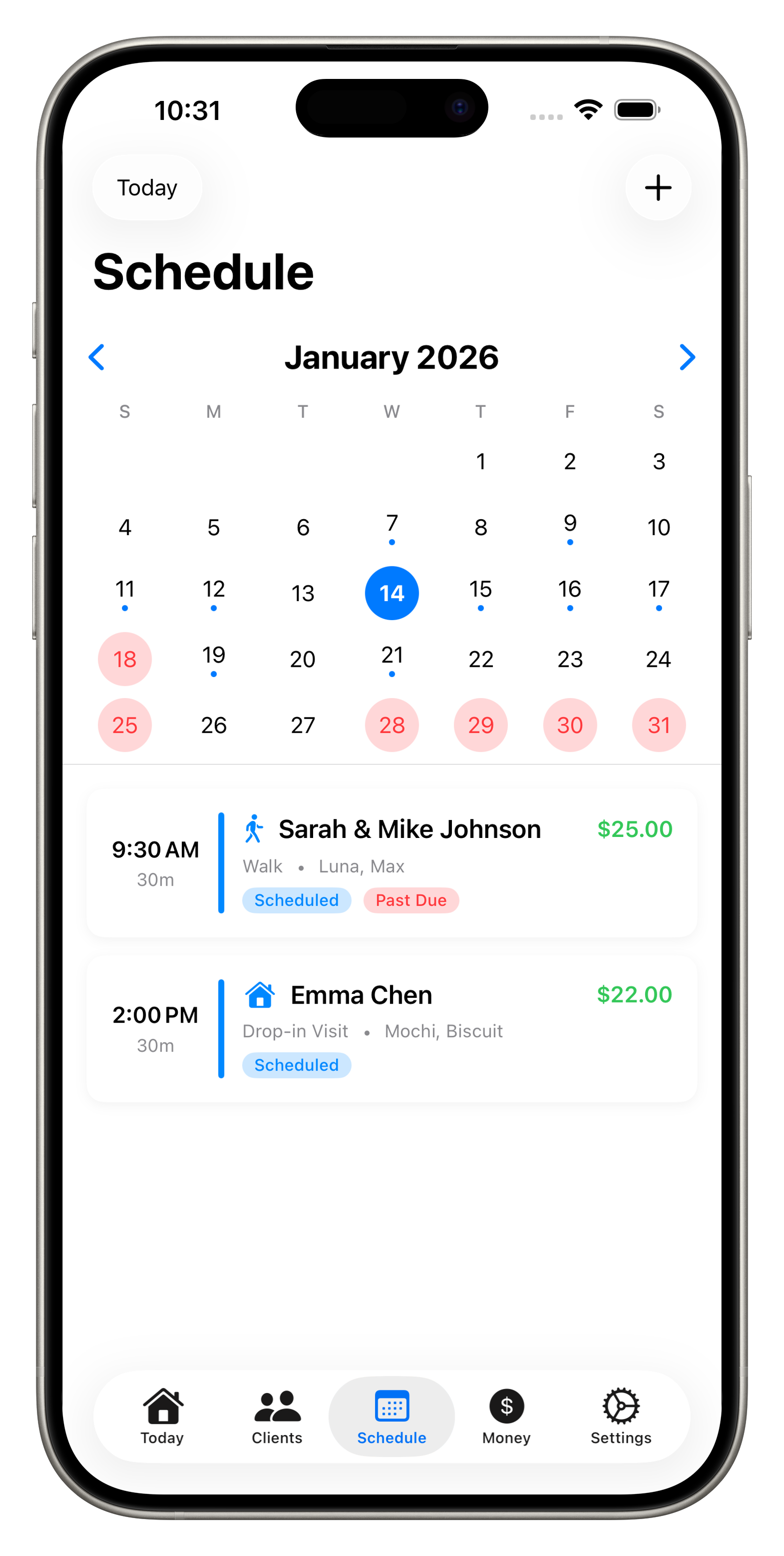
Visual calendar with recurring visits, blocked time, and calendar sync.

📄

Professional Reports

Generate branded PDF reports with activities, photos, and walk maps.

💰

Quotes & Invoicing

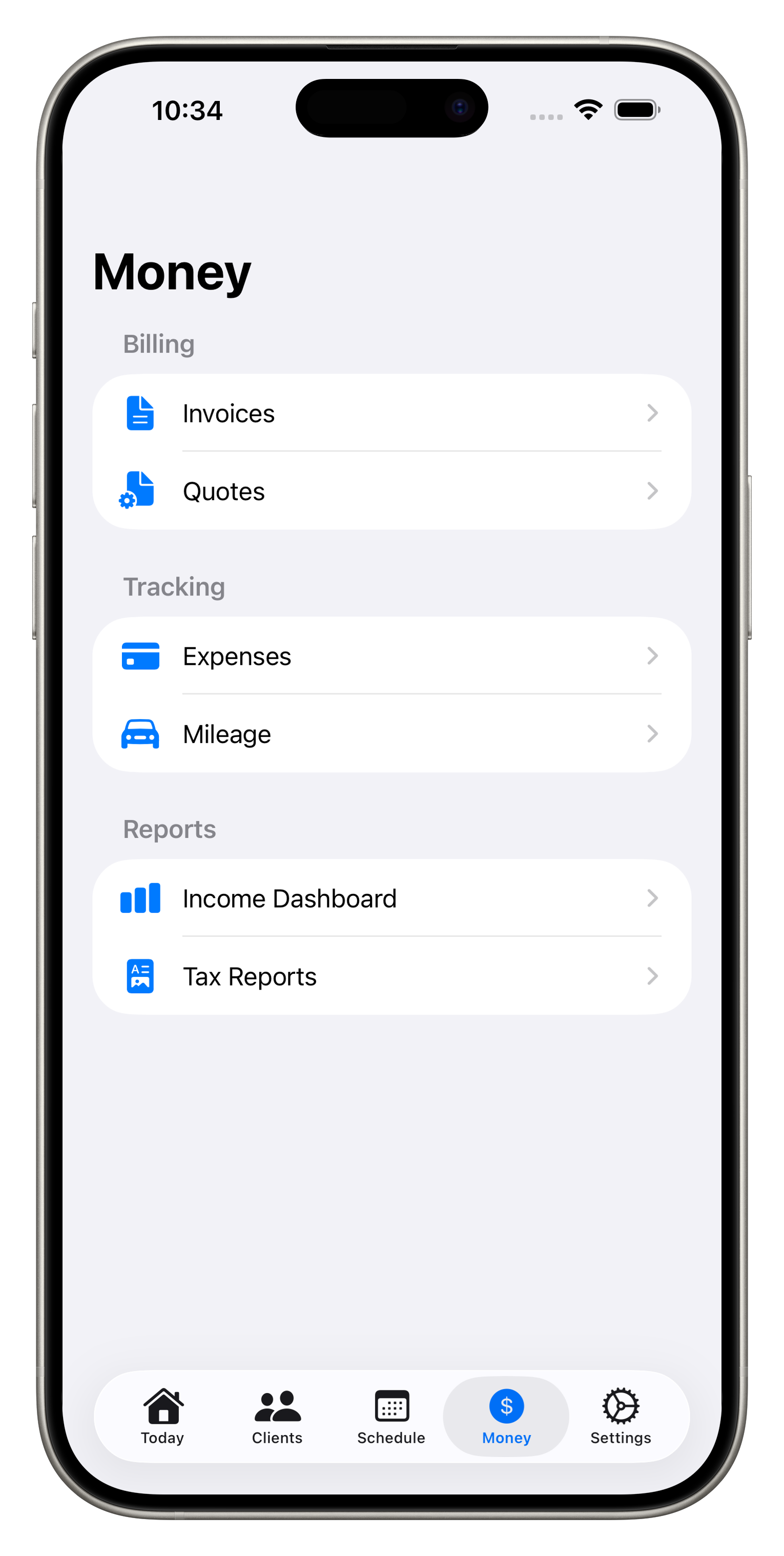
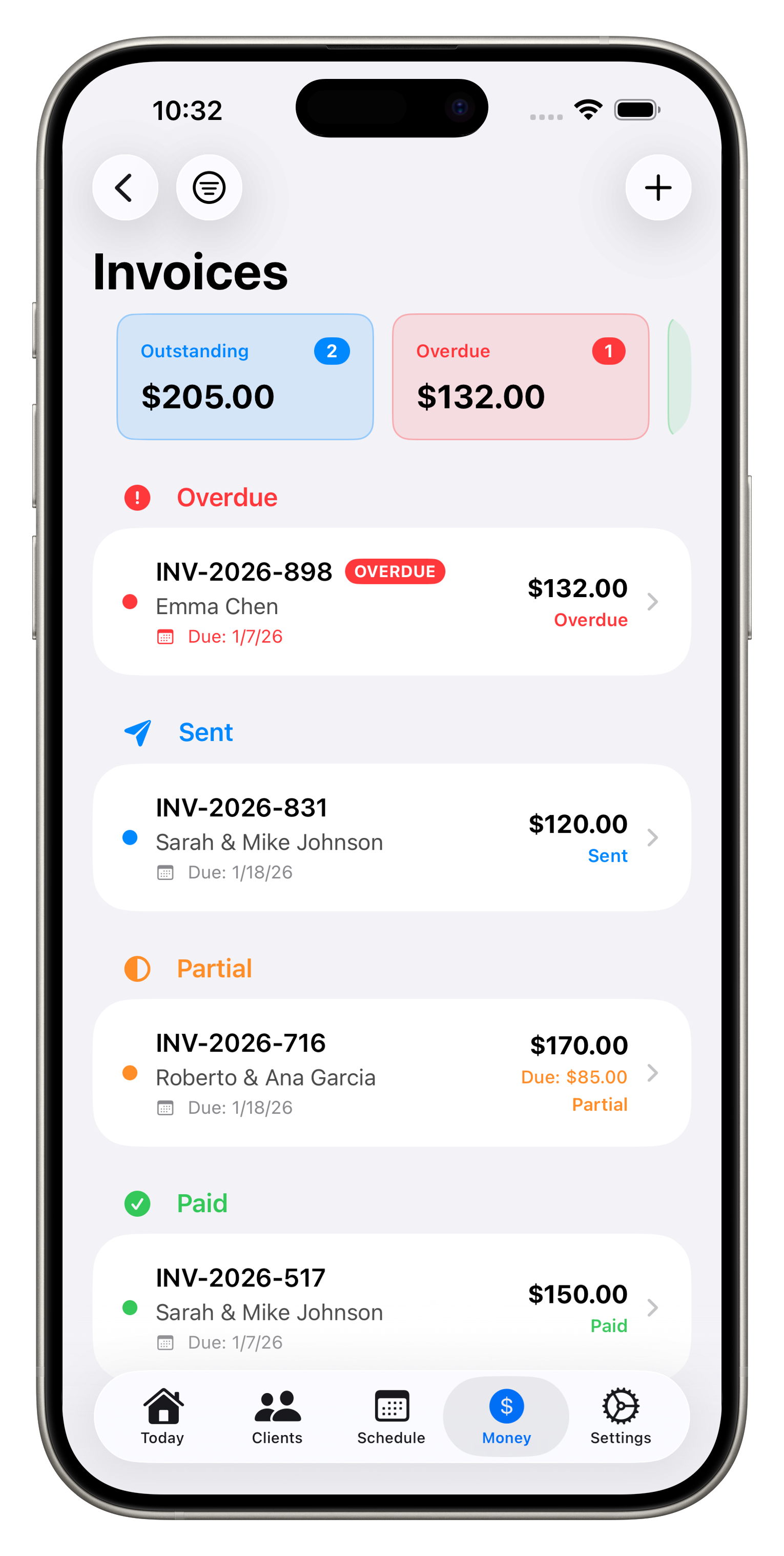
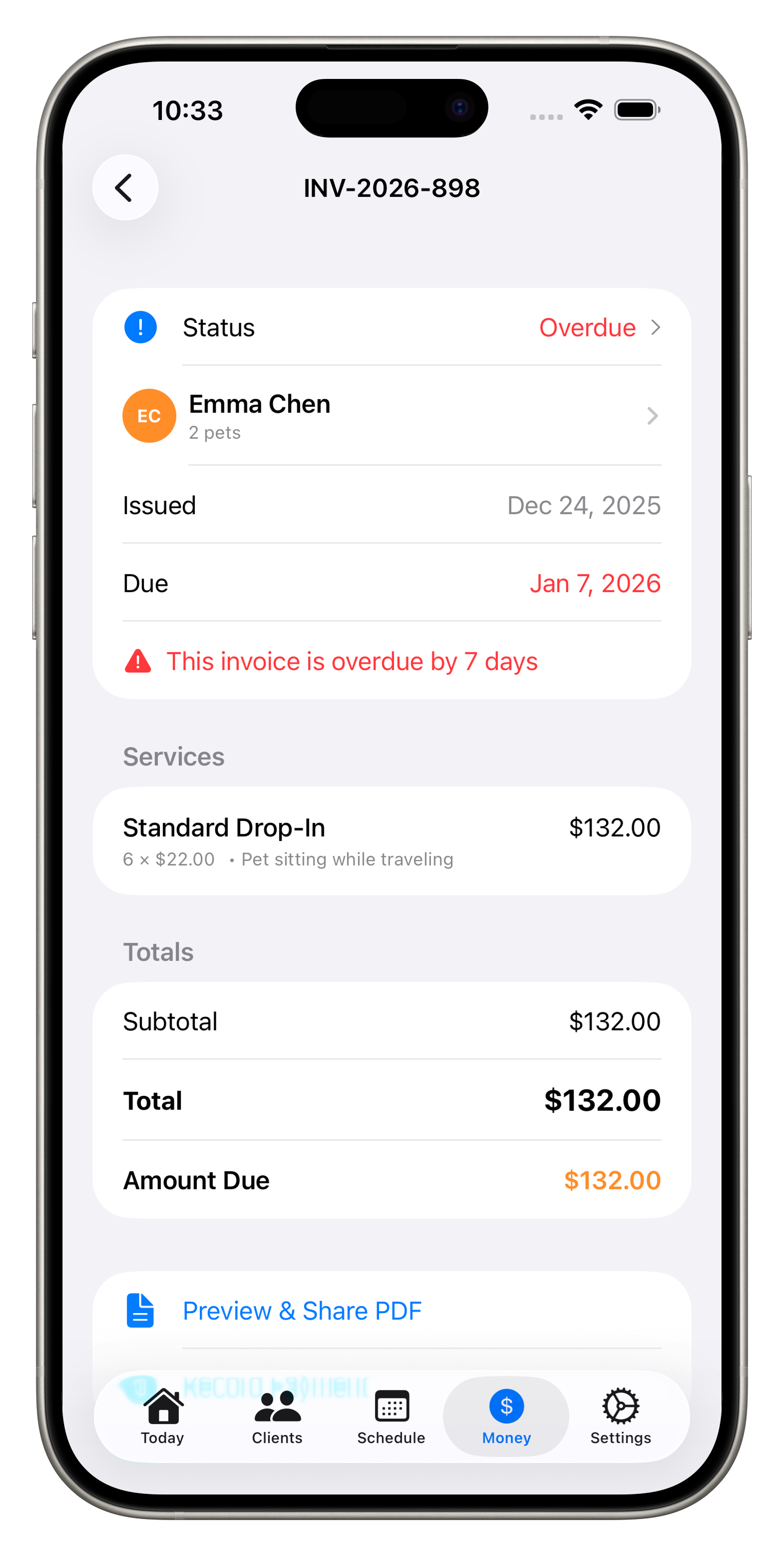
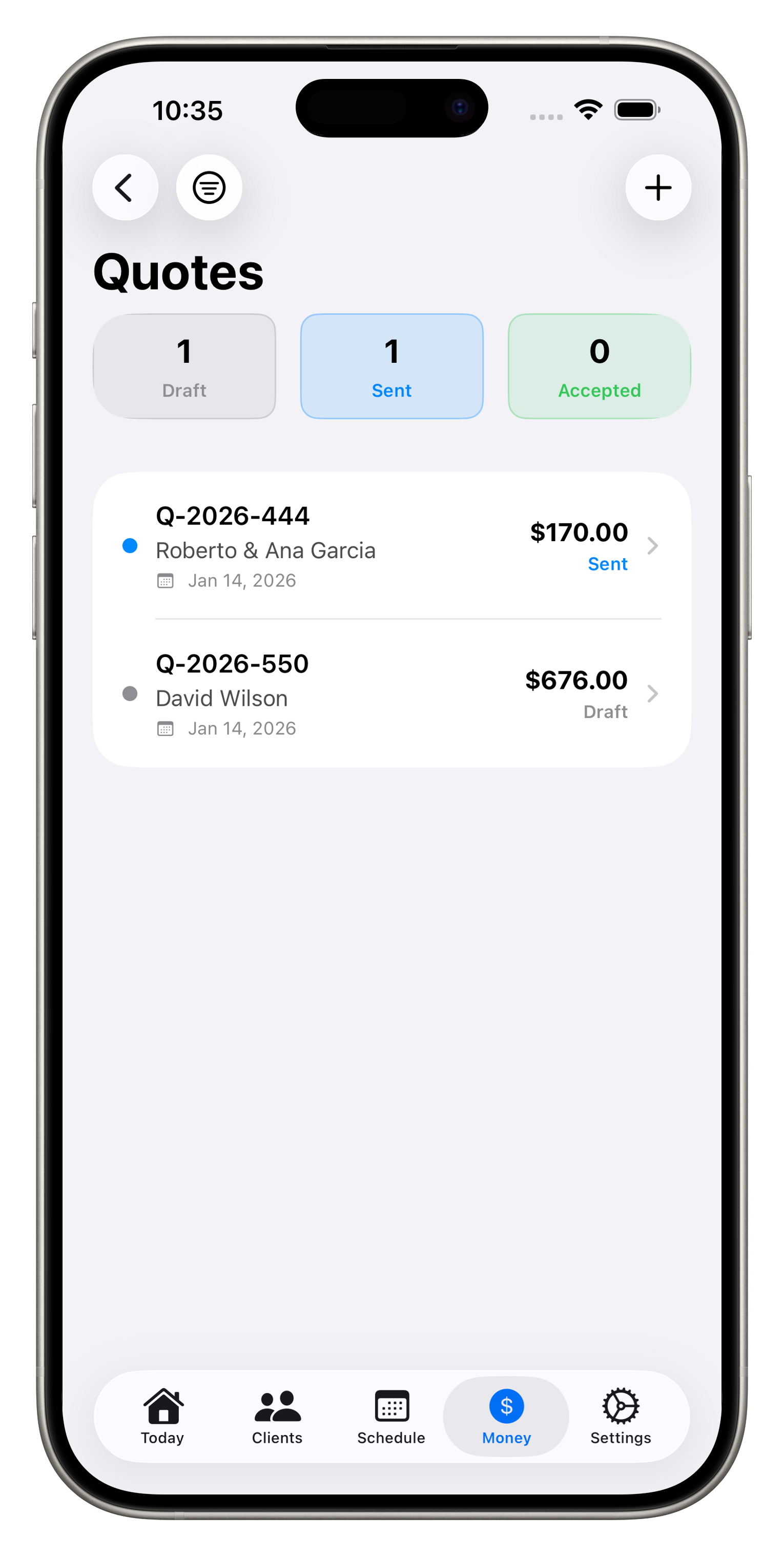
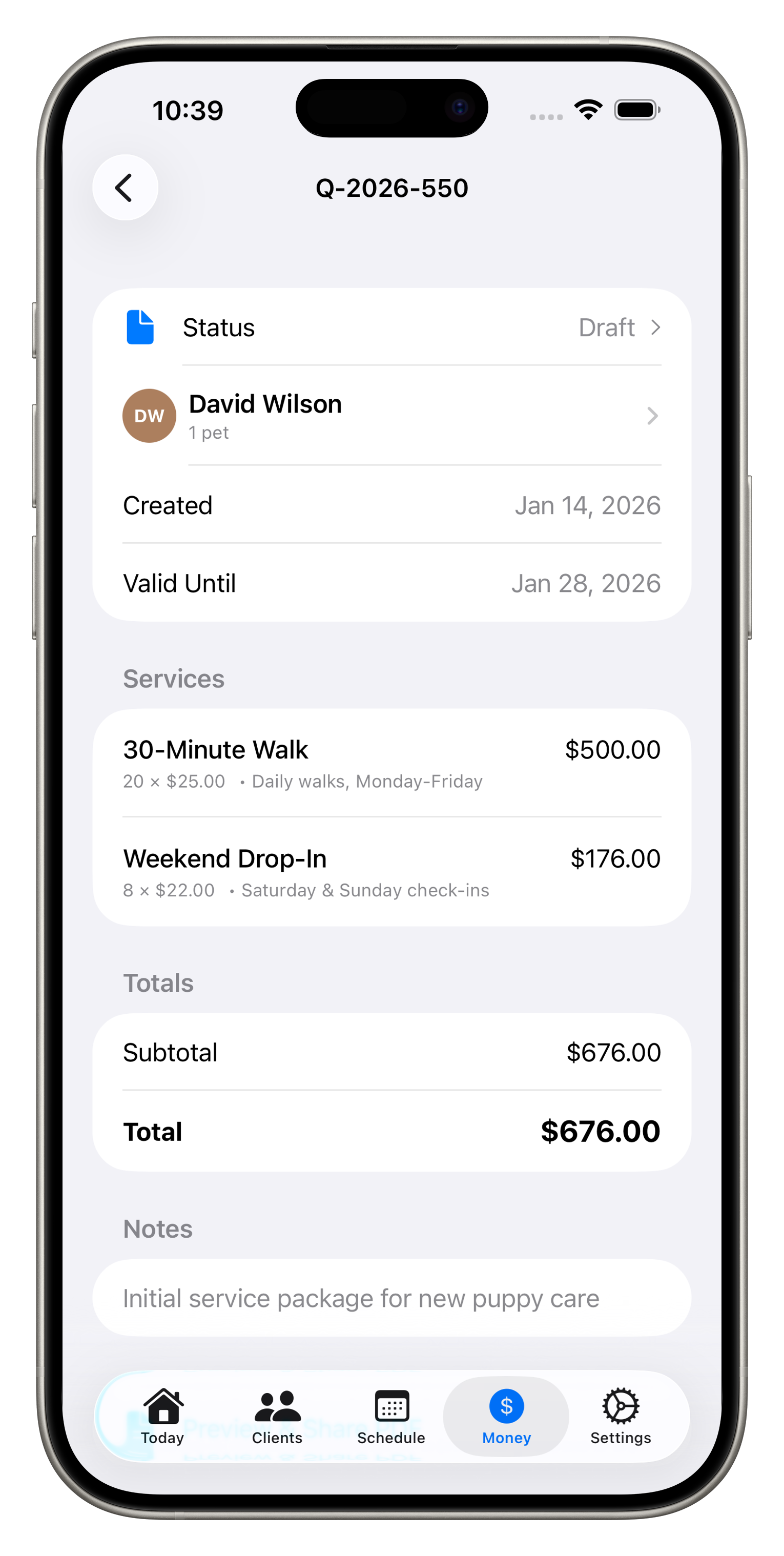
Create professional quotes and invoices. Track payments and who owes you.

📊

Financial Tracking

Log expenses and mileage for tax time. See your profit at a glance.

Powerful Features

Built specifically for professional pet sitters

🔑

Access Codes

Store keys, lockbox codes, alarm codes, and gate codes for each client. Never forget access info again.

📆

Recurring Schedules

Set up recurring visits like MWF walks that auto-generate. Block your days off weekly.

📱

Quick Messages

Send "On my way!" or "Just finished!" messages with one tap using customizable templates.

📷

Visit Photos

Capture photos during visits and include them in your professional reports to clients.

🚗

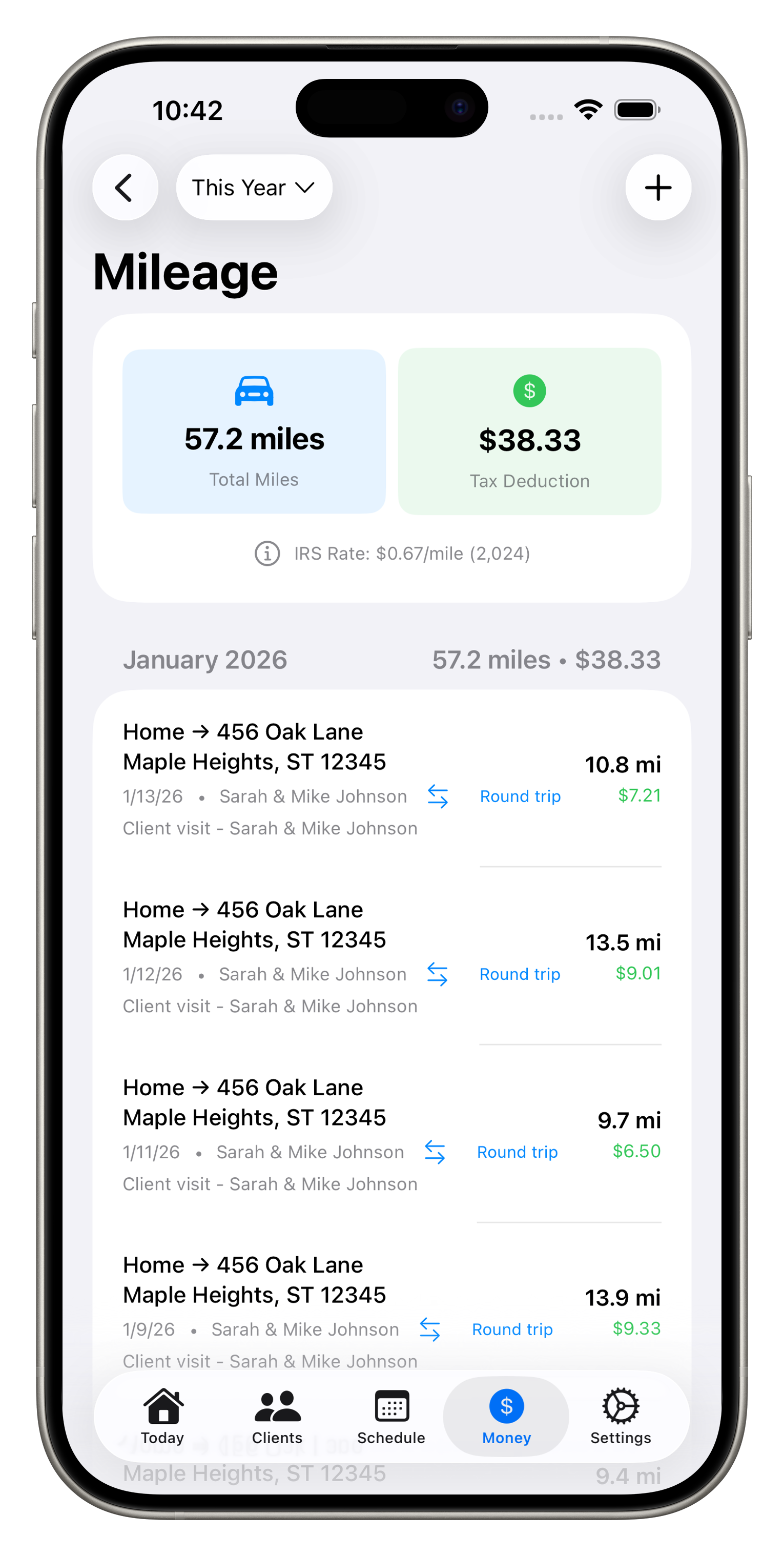
Mileage Tracking

Track your miles for tax deductions. Manual entry or automatic tracking with IRS rate calculation.

💳

Expense Tracking

Log business expenses with receipt photos. Organized by IRS categories for easy tax prep.

🔒

Face ID Security

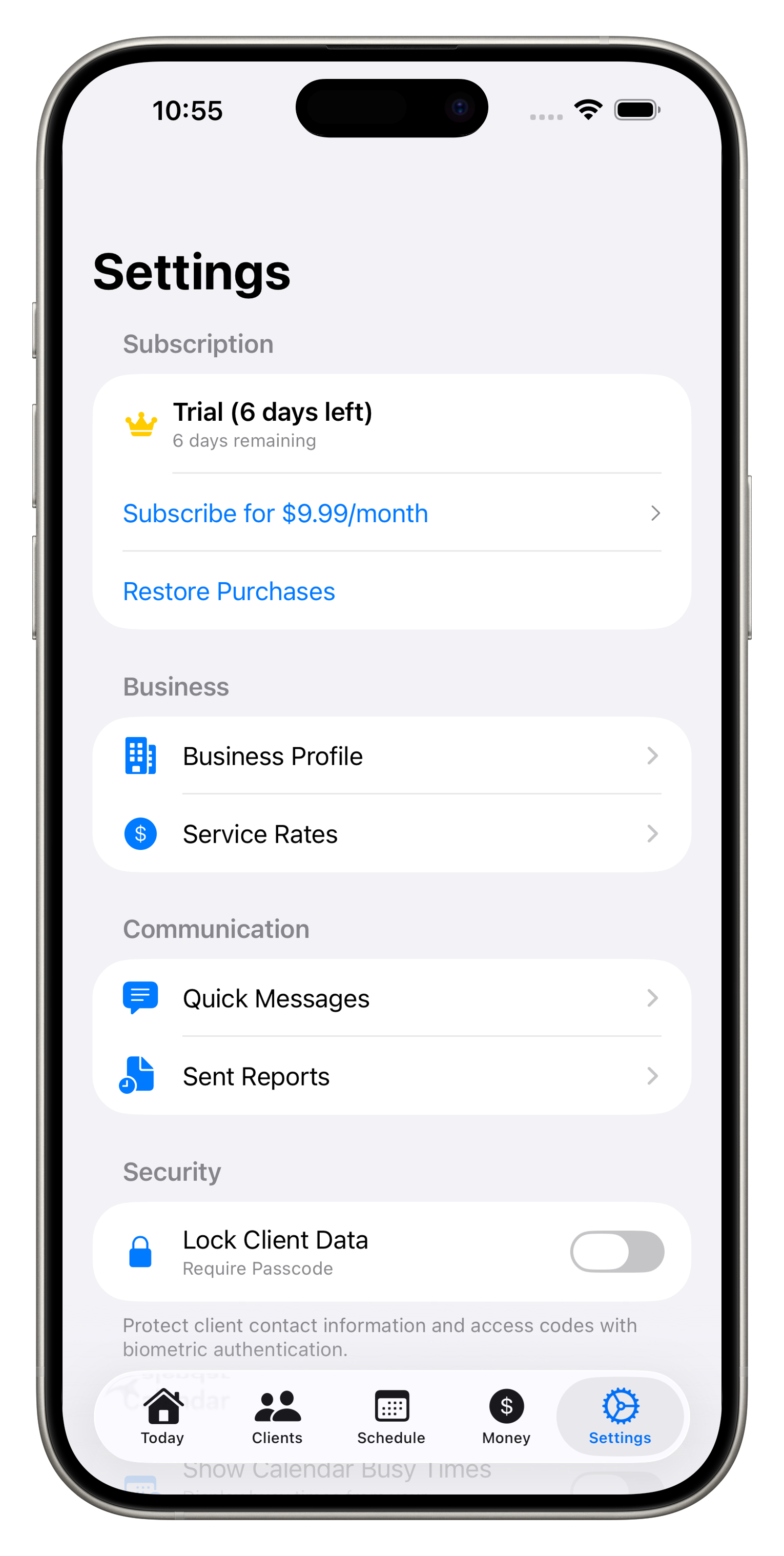
Protect your client data with Face ID or Touch ID. Your business information stays secure.

🌐

Privacy First

All data stored locally on your device. We never see your business data or client information.

How To Guides

Get started quickly with these step-by-step guides

Setting Up Your First Client

  1. Open the app and tap the Clients tab at the bottom
  2. Tap the + button in the top right corner
  3. Enter the client's name, address, and contact information
  4. Add emergency contact details (recommended for all clients)
  5. Tap Save to create the client profile
  6. From the client detail screen, tap Add Pet to add their pets
  7. Tap Add Access Info to store keys, codes, or lockbox information
Tip: Add detailed notes about each pet's feeding schedule, medications, and behavior to have everything at your fingertips during visits.

Tracking a Walk with GPS

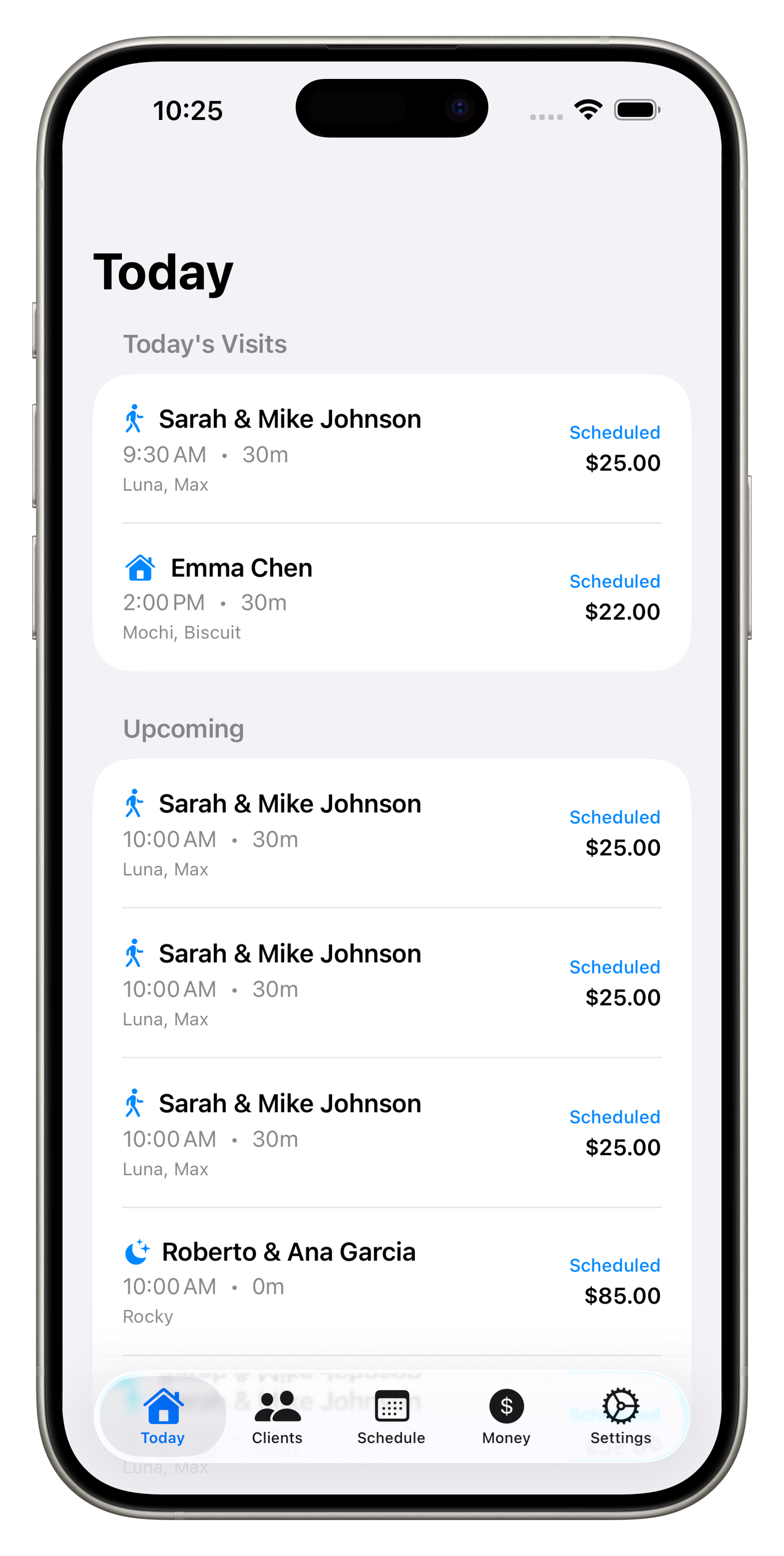
  1. Start or check in to a scheduled visit from the Today tab
  2. Once the visit is active, tap Track Walk to begin GPS tracking
  3. Walk your normal route - the app tracks your path in the background
  4. When finished, tap Stop Tracking
  5. The route map and distance are automatically saved to the visit
  6. When you generate a report, the walk map and distance are included
Tip: Make sure Location Services are enabled for PetSitterPro in your iPhone Settings for accurate tracking.

Creating and Sending an Invoice

  1. Go to the Money tab and tap Invoices
  2. Tap the + button to create a new invoice
  3. Select the client from your client list
  4. Tap Add Line Item to add services and amounts
  5. Optionally link completed visits to the line items
  6. Set the due date and add any notes
  7. Tap Save to save as draft, or Preview to see the PDF
  8. From the preview, tap Share to send via email, Messages, or AirDrop
Tip: Set up your business profile in Settings to have your logo and contact info automatically appear on all invoices.

Tracking Mileage for Taxes

  1. Go to the Money tab and tap Mileage
  2. Tap + to add a manual entry, or Start Tracking for automatic GPS tracking
  3. For manual entry: enter start/end locations, miles driven, and purpose
  4. Optionally link the trip to a specific client or visit
  5. The app automatically calculates your IRS deduction at the current rate ($0.67/mile)
  6. At year end, go to Reports to generate a mileage summary for your taxes
Tip: Log mileage after every client visit to ensure accurate records. The IRS requires contemporaneous records for mileage deductions.

Blocking Time Off

  1. Go to the Schedule tab
  2. Tap the menu icon and select Blocked Time
  3. Tap + to add a new blocked time
  4. Enter a title (e.g., "Vacation", "Doctor Appointment")
  5. Set the start and end dates/times
  6. For recurring blocks (like every Sunday off), enable Repeat and set the pattern
  7. Blocked times appear on your calendar and prevent scheduling conflicts
Tip: Set up recurring weekly blocks for your regular days off so clients can't accidentally book during your personal time.

Creating a Quote for New Clients

  1. Go to the Money tab and tap Quotes
  2. Tap the + button to create a new quote
  3. Select an existing client or add client details manually
  4. Add line items for each service you're proposing
  5. Set the validity period (how long the quote is good for)
  6. Add terms and conditions from your business profile or customize
  7. Preview the PDF and share with the potential client
  8. Track quote status (Sent, Accepted, Declined) from the Quotes list
Tip: Set up your standard service rates in Settings > Rate Card so you can quickly add them to quotes with consistent pricing.

Simple Pricing

Start free, upgrade when you're ready

7-Day Free Trial
$9.99/month
Join TestFlight Beta

Frequently Asked Questions

Answers to common questions about PetSitterPro

Getting Started

How do I add a new client? +
Go to the Clients tab and tap the + button in the top right corner. Fill in the client's details including name, address, and contact info. Then add their pets and access information from the client detail screen.
How do I add pets to a client? +
Open the client's profile, then tap "Add Pet" in the Pets section. Enter the pet's name, species, breed, and add a photo if you'd like. You can also add detailed care instructions, feeding schedules, and medication info.
How do I store keys and access codes? +
From a client's profile, tap "Add Access Info" in the Keys & Access section. Choose the type (Key, Lockbox, Alarm Code, Gate Code, etc.), enter the location or code, and add any notes. This info is shown during active visits for quick reference.

Visits & Scheduling

How do I schedule a visit? +
Go to the Schedule tab and tap the + button. Select a client, choose the date and time, pick the visit type (Walk, Drop-in, Overnight, etc.), and set the duration. You can also set it as recurring for regular visits.
How does GPS walk tracking work? +
During an active visit, tap "Track Walk" to start GPS tracking. Your route will be recorded and displayed on a map. Tap "Stop Tracking" when done. The route and distance are saved with the visit and can be included in your report to the client.
How do I set up recurring visits? +
When creating a visit, enable the "Recurring" option and choose your pattern (daily, weekly on specific days, etc.). The app will automatically generate visits according to your schedule. You can set an end date or let it repeat indefinitely.
How do I block recurring days off? +
Go to Schedule, then Blocked Time, then tap Add. Toggle on "Repeat" and select your frequency (Weekly, Daily, etc.). For weekly blocks, select the days you want off. The blocked times appear on your calendar and prevent scheduling conflicts.

Billing & Invoicing

How do I create an invoice? +
Go to the Money tab, then Invoices, then tap +. Select a client, add line items for your services, set the due date, and save. You can preview the professional PDF invoice and share it with your client via email, Messages, or AirDrop.
How do I record a payment? +
Open the invoice, then tap "Record Payment". Enter the amount, payment date, and method (Cash, Venmo, Zelle, Check, etc.). The invoice status will update automatically to Paid or Partial based on the amount received.
How do quotes work? +
Quotes let you send pricing proposals to potential clients before they book. Create a quote with your services and pricing, set how long it's valid, and share the professional PDF. Track whether quotes are Sent, Accepted, or Declined.

Taxes & Finances

Can I track my mileage for taxes? +
Yes! Go to Money, then Mileage. You can manually enter trips or use the tracker to record your drive in real-time. The app calculates your IRS deduction automatically at the current rate ($0.67/mile for 2024). Generate a year-end mileage report for your taxes.
How do I track business expenses? +
Go to Money, then Expenses, and tap + to add an expense. Choose a category (Gas, Supplies, Equipment, etc.), enter the amount and vendor, and optionally attach a receipt photo. Expenses are organized by IRS categories for easy tax preparation.
Can I generate tax reports? +
Yes! Go to Money, then Reports to see income summaries, expense reports by category, and mileage logs. You can generate PDF reports for any time period to share with your accountant or use for tax filing.

Data & Privacy

Is my data backed up? +
Your data is stored locally on your device and included in your iCloud or iTunes backups if you have those enabled. The app itself does not upload data to cloud servers to protect your privacy and your clients' information.
How secure is my client data? +
PetSitterPro offers Face ID/Touch ID protection to prevent unauthorized access to your app. All data is stored locally on your device using Apple's secure storage. We never have access to your business data or client information.
Can I export my data? +
Yes! You can export various reports as PDF files including client lists, visit reports, invoices, quotes, mileage logs, and expense summaries. These can be shared, saved, or printed as needed.

Subscription

How does the free trial work? +
You get full access to all features for 7 days, completely free. No credit card required to start. After the trial, you can subscribe for $9.99/month to continue using all features, or the app becomes read-only.
What happens if I don't subscribe? +
After your trial ends, the app enters read-only mode. You can still view all your existing data (clients, visits, invoices, etc.) but cannot add new entries or make changes. Your data is never deleted.
How do I cancel my subscription? +
Subscriptions are managed through Apple. Go to your iPhone Settings, tap [Your Name], then Subscriptions, then PetSitterPro, then Cancel Subscription. You'll retain access until the end of your current billing period.

Need Help?

We're here to help you succeed with PetSitterPro

[email protected]

Response time: Usually within 24 hours